Dec 2022 - Jan 2023

User needs shaping the OneNote Mobile Canvas
Overview

This project focused on bringing the most requested features to OneNote’s Android experience—rich text formatting, tables, and shape insertion

To enable these advanced capabilities, we redesigned the command bar to be scalable, contextual, and lightweight. The new design surfaces the right tools at the right time, minimizing friction and making everyday note-taking fast and intuitive.

The redesign is now live and available to millions of Android users worldwid

Read media article
Tech Community Blog

My Role

  • Designed and shipped some of the most requested features on OneNote Android—including Tables, Rich Text Formatting, and Shape Insertion—to support modern note-taking on mobile

  • Led the design of a contextual command bar, determining user intent to surface relevant actions and streamline the editing experience.

  • Conducted usability testing, and futher improved the experience to ensure a seamless, intuitive experience for 7 million MAU.

  • This resulted in 3.5 NPS gain.

CCB improvemtns

CCB improvemtns

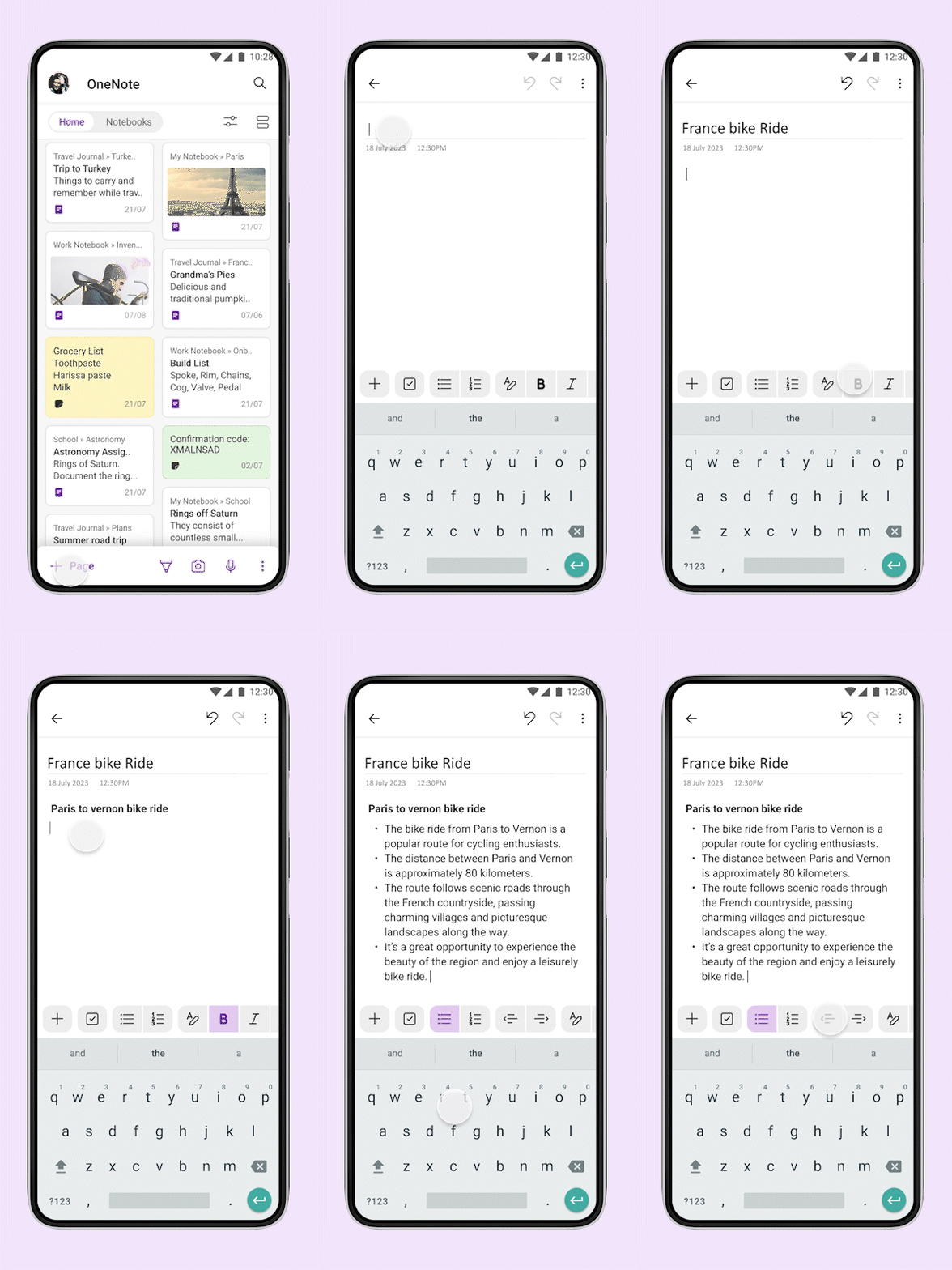
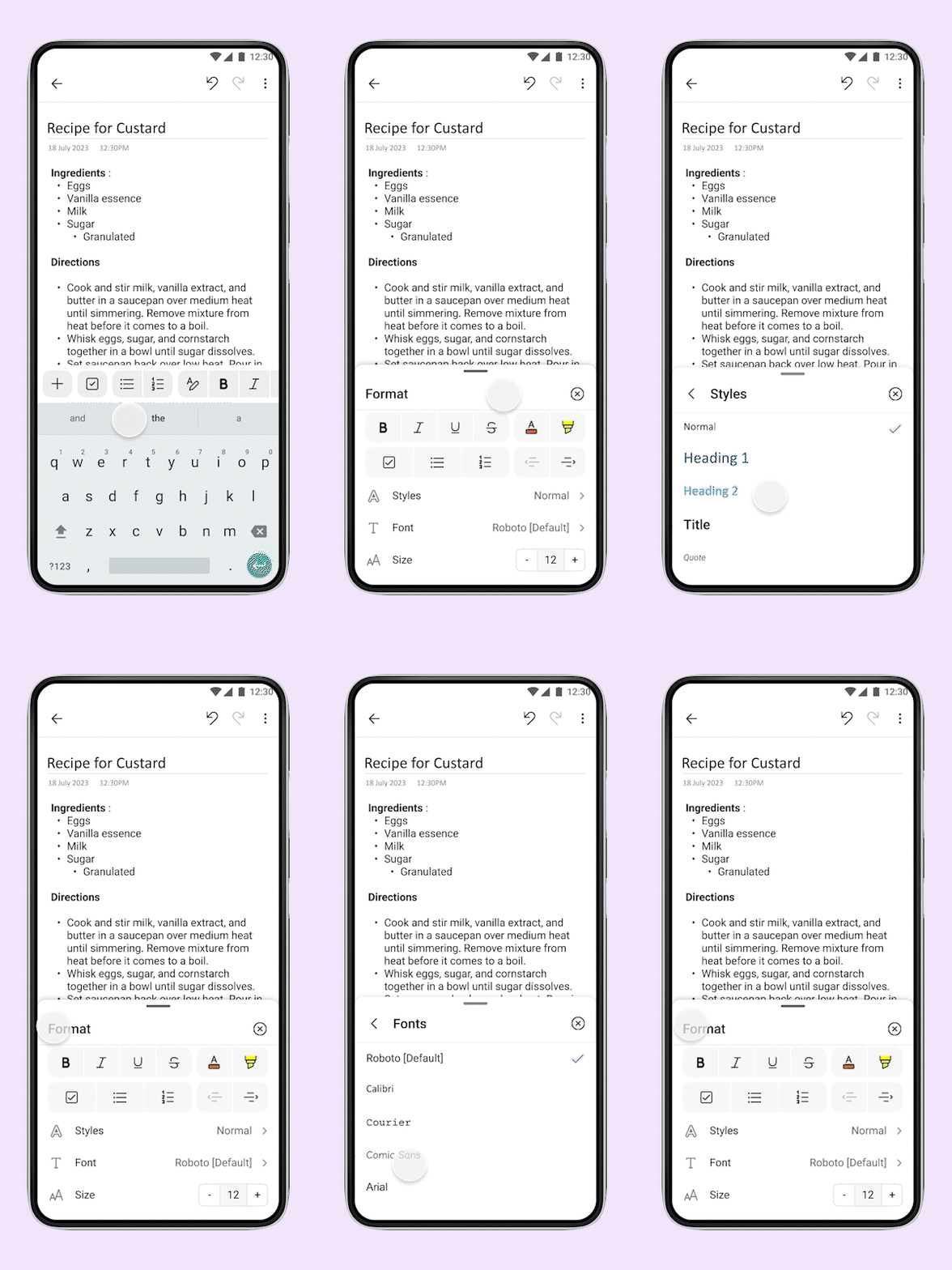
All the text mode commands you need, such as checklists, bullet lists and text formatting, are available to you as you start typing a new note. These commands are dynamically brought on the fore front, to ensure you only see what’s important to you.

All the text mode commands you need, such as checklists, bullet lists and text formatting, are available to you as you start typing a new note. These commands are dynamically brought on the fore front, to ensure you only see what’s important to you.

All the text mode commands you need, such as checklists, bullet lists and text formatting, are available to you as you start typing a new note. These commands are dynamically brought on the fore front, to ensure you only see what’s important to you.

Additional Modalities

Additional Modalities

Introducing streamlined approach for quick capture and switching between different notes formats. Capture text, images, voice, ink, URLs, tables, attachments and annotate them all in one convenient note. Save time and reduce cognitive load with ‘+’ icon on your command bar.

Introducing streamlined approach for quick capture and switching between different notes formats. Capture text, images, voice, ink, URLs, tables, attachments and annotate them all in one convenient note. Save time and reduce cognitive load with ‘+’ icon on your command bar.

Introducing streamlined approach for quick capture and switching between different notes formats. Capture text, images, voice, ink, URLs, tables, attachments and annotate them all in one convenient note. Save time and reduce cognitive load with ‘+’ icon on your command bar.

Real time note sharing

Real time note sharing

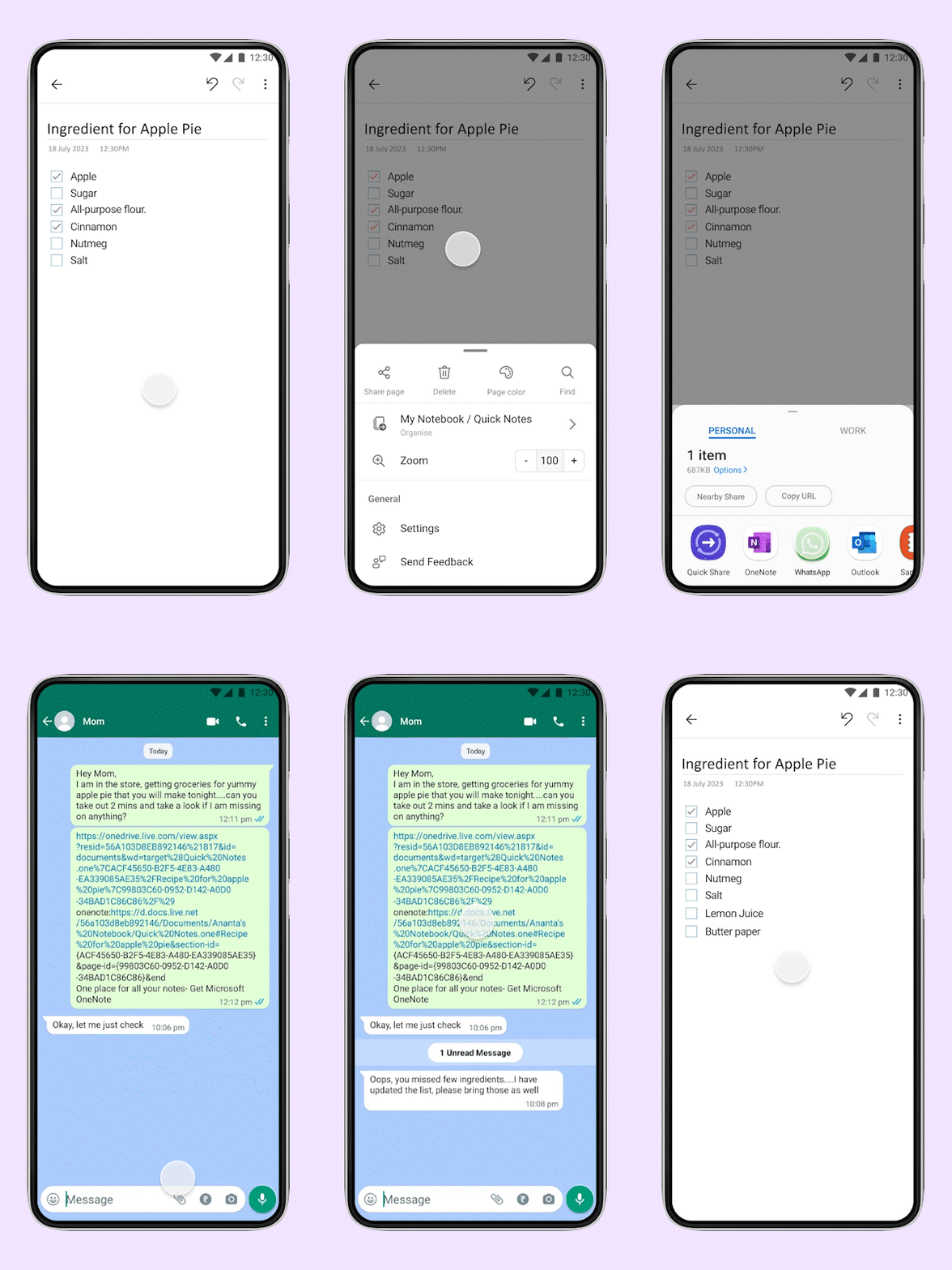
Click on the three-dot menu on the top right to access note level actions. You can now apply a page style, file the note to a different notebook, add the note to your home screen, delete, share your note in real time, enhancing collaboration and knowledge sharing and more.

Click on the three-dot menu on the top right to access note level actions. You can now apply a page style, file the note to a different notebook, add the note to your home screen, delete, share your note in real time, enhancing collaboration and knowledge sharing and more.

Click on the three-dot menu on the top right to access note level actions. You can now apply a page style, file the note to a different notebook, add the note to your home screen, delete, share your note in real time, enhancing collaboration and knowledge sharing and more.

Insert shapes - ink mode 

Insert shapes - ink mode 

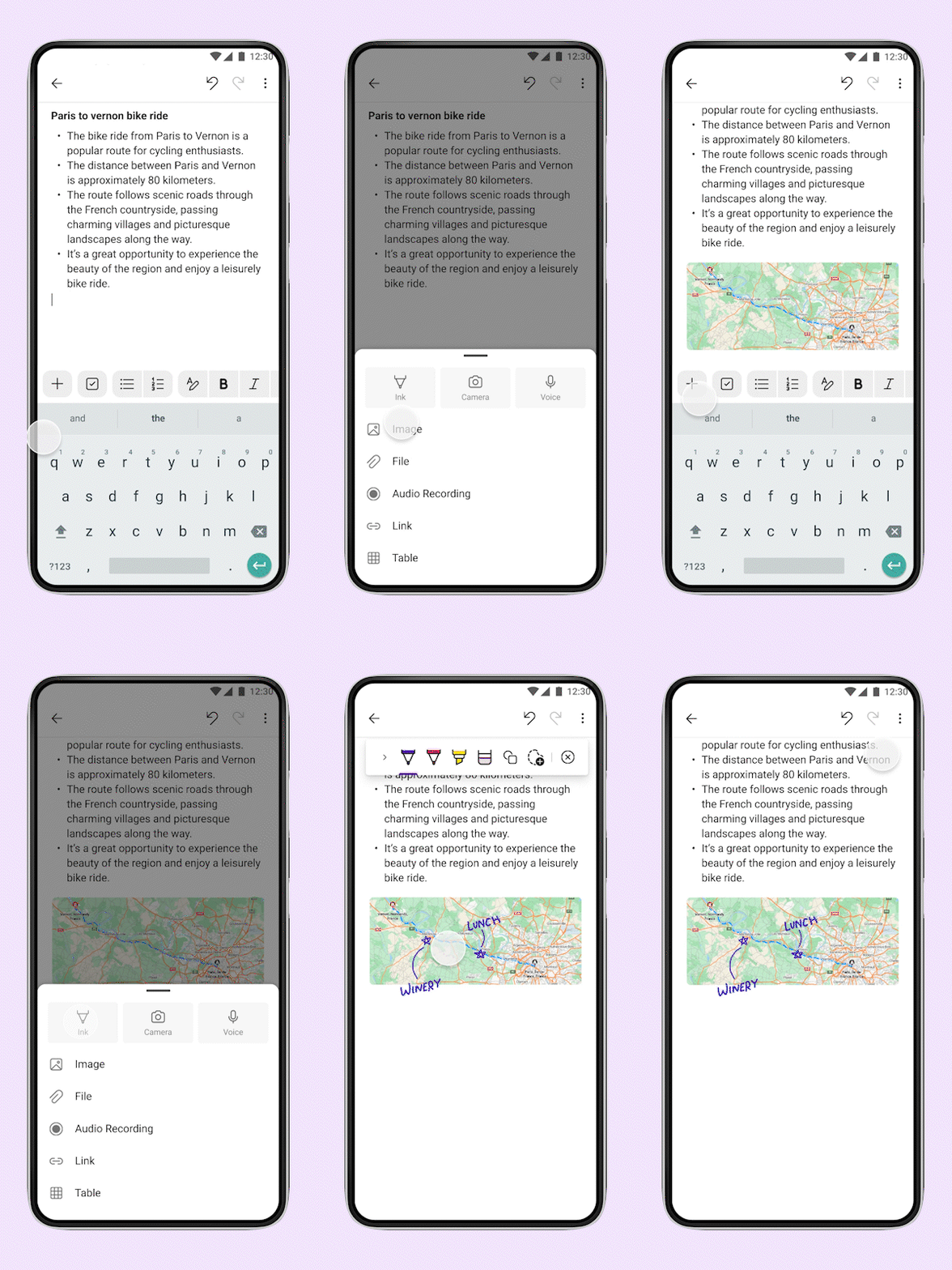
Tap the ‘+’ icon on the top right to switch to ink mode. Select the newly introduced shapes icon to view a list of all the shapes you can add to your notes

Tap the ‘+’ icon on the top right to switch to ink mode. Select the newly introduced shapes icon to view a list of all the shapes you can add to your notes

Tap the ‘+’ icon on the top right to switch to ink mode. Select the newly introduced shapes icon to view a list of all the shapes you can add to your notes

Insert tables

Insert tables

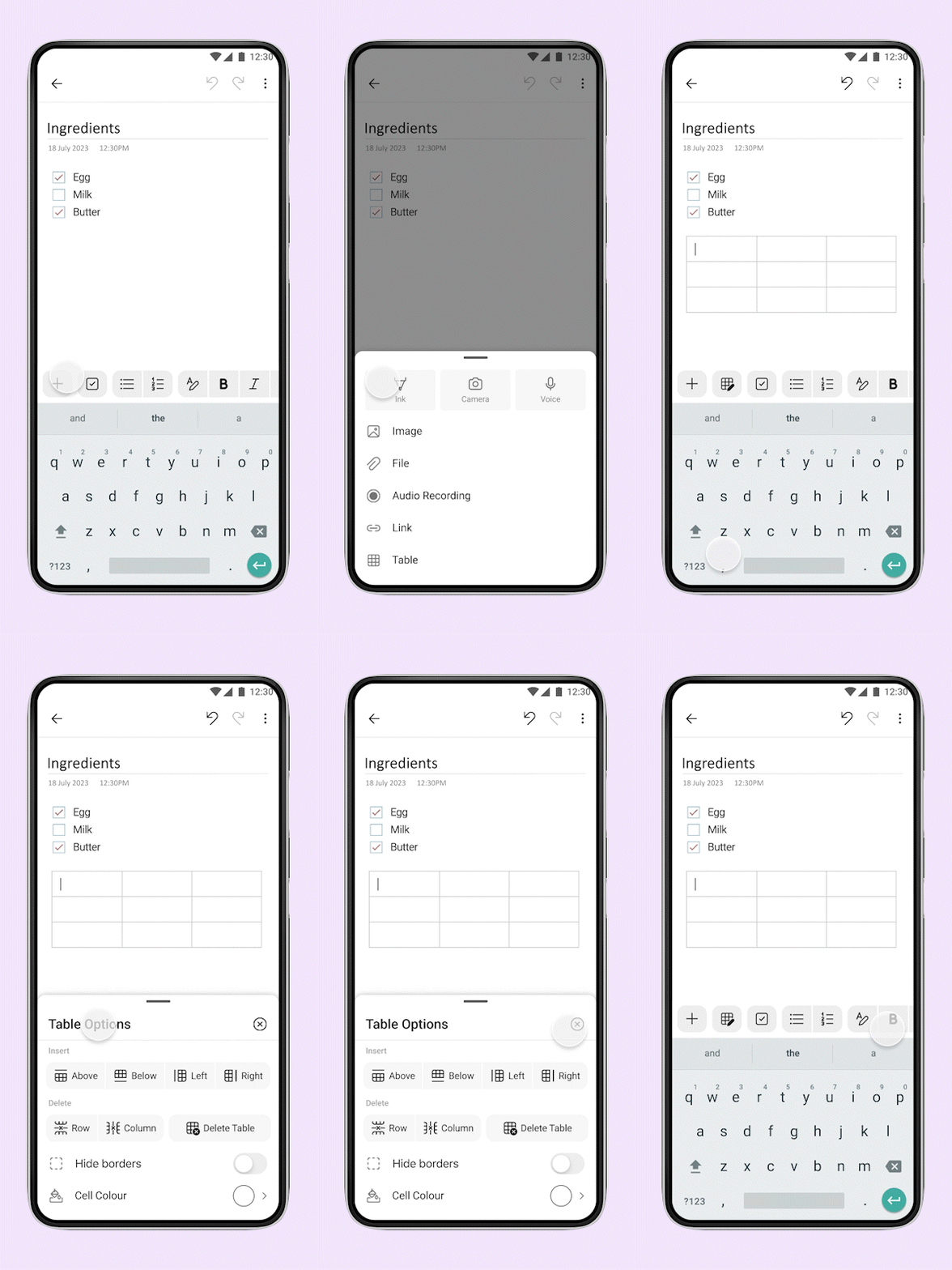
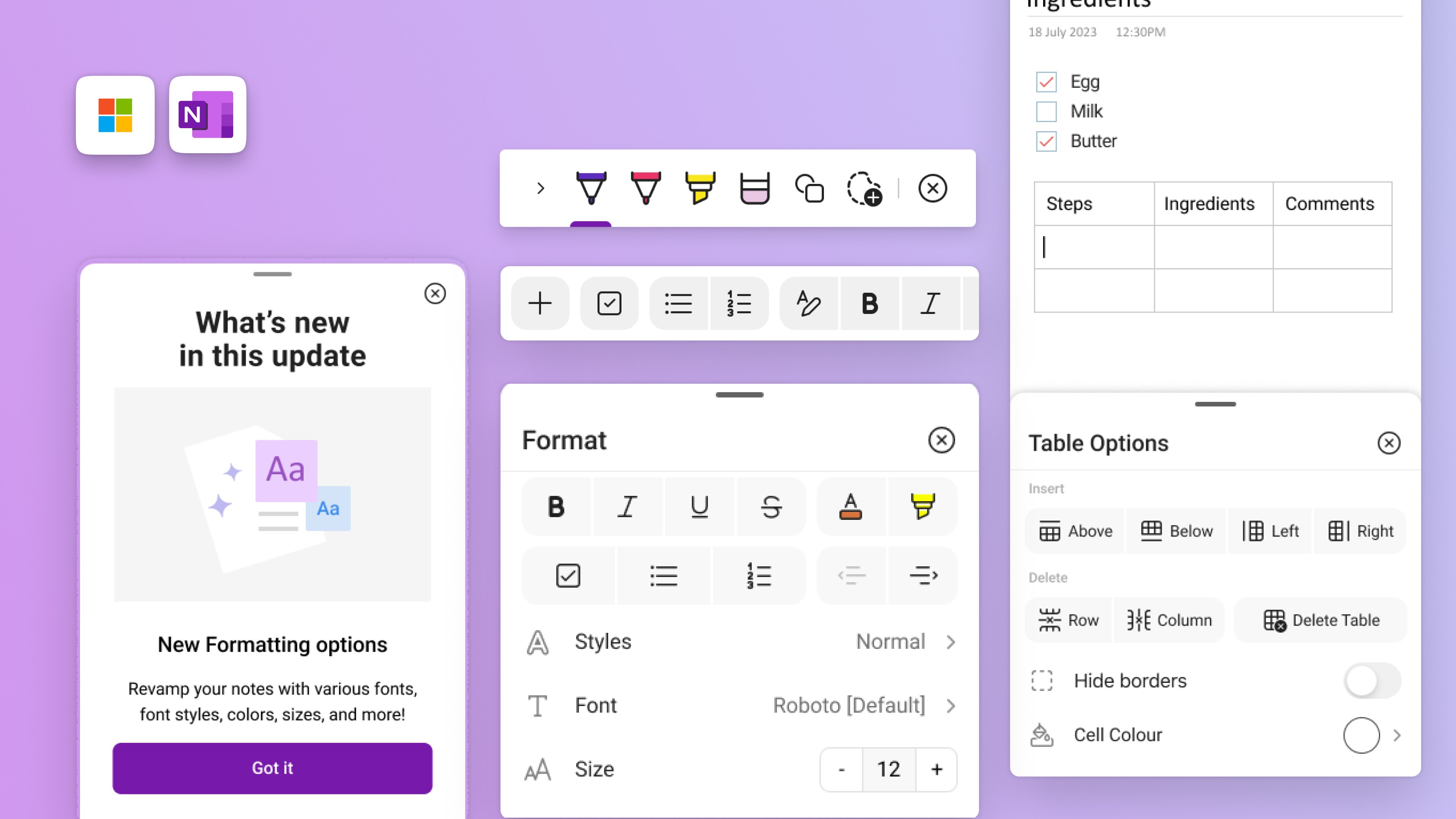
As you are typing a note, click on the table icon within your contextual command bar. By default, a 3X3 table will be inserted into your note, but you can add or delete rows/columns as per your need

As you are typing a note, click on the table icon within your contextual command bar. By default, a 3X3 table will be inserted into your note, but you can add or delete rows/columns as per your need

As you are typing a note, click on the table icon within your contextual command bar. By default, a 3X3 table will be inserted into your note, but you can add or delete rows/columns as per your need

Update font color and style

Update font color and style

Let your notes reflect your style and personality. Tap on the text formatting option within your contextual command bar and select the fonts icon. You can change the style, color and size of your text, heading as per your choice to format your notes.

Let your notes reflect your style and personality. Tap on the text formatting option within your contextual command bar and select the fonts icon. You can change the style, color and size of your text, heading as per your choice to format your notes.

Let your notes reflect your style and personality. Tap on the text formatting option within your contextual command bar and select the fonts icon. You can change the style, color and size of your text, heading as per your choice to format your notes.

Locked case study
Get in touch to know more


Locked case study
Get in touch to know more

LLiinnkkeeddIInn